
iPad Lover
Saturday, October 17, 2026
No Result
View All Result
  • HOME
  • TIPS
  • REVIEWS
  • STUDY
    • BOOKS
    • SKILLS
  • TEMPLATES
iPad Lover
No Result
View All Result
How to change Keynote slide size on iPadOS 16

How to change Keynote slide size on iPadOS 16

Tiny by Tiny
11/29/2022
in TIPS
0

Don’t know how to change the Keynote slide size on iPadOS 16? Let us help you with the detailed guide below.

Keynote is one of the most powerful apps for creating presentations. Additionally, this familiar app also helps you create your own digital planners as well as digital notebooks.

No matter what you use Keynote for, create slides, or make digital products, you need to know how to customize the slide size so that the content doesn’t look out of place. If you don’t know how to do this on iPadOS 16 onwards, here is how.
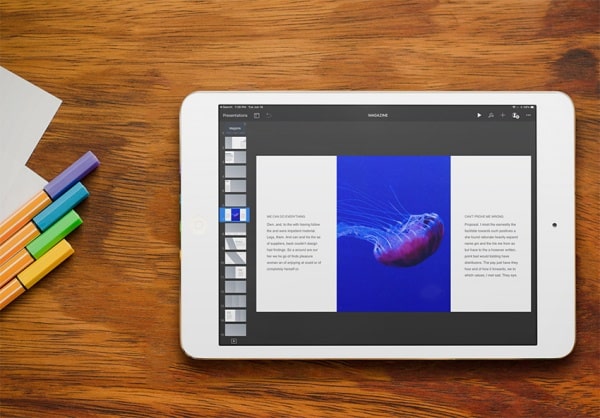
How to change Keynote slide size on iPadOS 16

Change Keynote slide size on iPadOS 16

On iPadOS 16, the way to customize the slide size has been different from the old ones, which confuses many people. If the slide is not properly sized, it can make your efforts at creating cool presentations or digital notebooks futile. Therefore, don’t forget to update how to customize the slide size on the Keynote latest version. It’s still incredibly simple, of course.

✤ Step 1: Open the Keynote slideshow you want to customize.

✤ Step 2: Click on the drop-down menu beside your file’s name.

How to change Keynote slide size on iPadOS 16 Step 1

✤ Step 3: Choose Presentation Options => Presentation Setup.

How to change Keynote slide size on iPadOS 16 Step 2

✤ Step 4: Tap on Slide Size in the bottom-right.

✤ Step 5: Select the slide whose dimension you want to change then choose the present slide size or aspect ratio at the bottom.

How to change Keynote slide size on iPadOS 16 Step 3

If you want to enter a custom size, select Custom and enter the size (Width and Height) you need. The default size is in pt (point), so if you want the slide to be A4 or A5,… you need to convert from millimetre or centimetre to point first.

After that, tap on Done in the top-left corner.

Change Keynote slide size on iPadOS 15 and earlier

In case you are still using older versions of iPadOS, you can change the size of Keynote slides traditionally as follows:

✤ Step 1: Open the Keynote app and the Keynote file that you want to change the size of.

✤ Step 2:  Tap the three dots icon in the top-left corner, then select Document Setup.

How to customize Keynote slide size on iPadOS 15

✤ Choose Slide Size => Select the slide you want to customize => Choose the size or aspect ratio at the bottom.

Similar to the above, you can also choose Custom to enter the specific size as per your need.

How to customize Keynote slide size on iPadOS 15 Step 3

This is how you can change slide size for your Keynote presentations on the latest version. This tip will ensure you always have professional presentations and beautiful digital notebooks.


ShareTweetShare
Tiny

Tiny

Hey, I’m Tiny! I’m a tech enthusiast with a love for iPads and learning. Here, I share practical iPad tips, study hacks, and my favorite apps and accessories. Hope you find something helpful!

Related Posts

How to fix iPad Smart Folio keyboard typed letters repeating bug
TIPS

How to solve iPad Smart Folio keyboard typed letters repeating bug

10/16/2026
Fix Apple Pencil Tilt Sensitivity Not Working in Procreate
TIPS

Fix Apple Pencil Tilt Sensitivity Not Working in Procreate

10/15/2026
Organize iPad Home Screen with App Library
TIPS

How to Organize iPad Home Screen with App Library

10/14/2026
Record iPad Screen with Internal Audio
TIPS

How to Record iPad Screen with Internal Audio: Complete Guide

10/13/2026
Use iPad Stage Manager with Mouse Keyboard
TIPS

How to Use iPad Stage Manager with Mouse Keyboard: Ultimate Guide

10/12/2026
Copy Text from Photos on iPad
TIPS

How to Copy Text from Photos on iPad: Live Text Guide

10/11/2026
Next Post
Goodnotes lagging when writing

How To Fix Goodnotes Lagging When Writing: Simple Tips

Leave a Reply Cancel reply

Your email address will not be published. Required fields are marked *

Recent Posts

  • How to solve iPad Smart Folio keyboard typed letters repeating bug 10/16/2026
  • Fix Apple Pencil Tilt Sensitivity Not Working in Procreate 10/15/2026
  • How to Organize iPad Home Screen with App Library 10/14/2026
  • How to Record iPad Screen with Internal Audio: Complete Guide 10/13/2026
  • How to Use iPad Stage Manager with Mouse Keyboard: Ultimate Guide 10/12/2026

Categories

  • REVIEWS (24)
  • STUDY (16)
    • BOOKS (4)
    • SKILLS (9)
  • TEMPLATES (4)
  • TIPS (199)
iPad Lover

We bring you the best content on iPad tricks, apps, templates and effective learning/working tips with Apple's tablets.

Categories

  • BOOKS
  • REVIEWS
  • SKILLS
  • STUDY
  • TEMPLATES
  • TIPS

Recent News

  • How to solve iPad Smart Folio keyboard typed letters repeating bug
  • Fix Apple Pencil Tilt Sensitivity Not Working in Procreate
  • How to Organize iPad Home Screen with App Library
  • Home
  • Privacy Policy
  • Contact
  • About

© 2023 iPad Lover

Welcome Back!

Login to your account below

Forgotten Password?

Retrieve your password

Please enter your username or email address to reset your password.

Log In
No Result
View All Result
  • About
  • Contact
  • Home
  • Privacy Policy

© 2023 iPad Lover


