


Learn how to limit screen time on iPad with practical tips. Master Apple’s Screen Time settings and build healthier digital habits today.
As an iPad enthusiast, I’ll be the first to admit that these devices are incredible. Whether you’re sketching on Procreate, editing videos, or just catching up on the latest tech news, the iPad is a powerhouse. But there’s a flip side. The “infinite scroll” of social media and the addictive nature of YouTube Shorts can turn a quick 10-minute break into a 2-hour rabbit hole.
If you’ve ever looked at your weekly report and felt a pang of guilt, you’re not alone. Managing our digital diet is a core part of personal development in 2026. This isn’t just about “parental controls”, it’s about reclaiming your focus and mental energy.
In this guide, we’ll dive into how to limit screen time on iPad using a mix of built-in Apple tools and practical “real-world” hacks sourced from power users and tech forums.
CONTENTS:
Why managing iPad usage is a productivity game-changer
Before we get into the “how,” let’s talk about the “why.” Our brains aren’t wired for the constant dopamine hits that modern apps provide. When you learn to limit your screen time, you aren’t just “using your iPad less.” You are:
-
Improving your deep focus: Allowing your brain to stay in the “flow state” longer.
-
Reducing eye strain: Your eyes will thank you for the breaks from that liquid retina display.
-
Better sleep hygiene: Reducing blue light exposure before bed is the ultimate self-care tip.

How to limit screen time on iPad: The ultimate setup guide
Apple has built a robust suite of tools right into iPadOS. Here is how to set them up for maximum effectiveness, whether for yourself or a family member.
1. Master the “Downtime” schedule
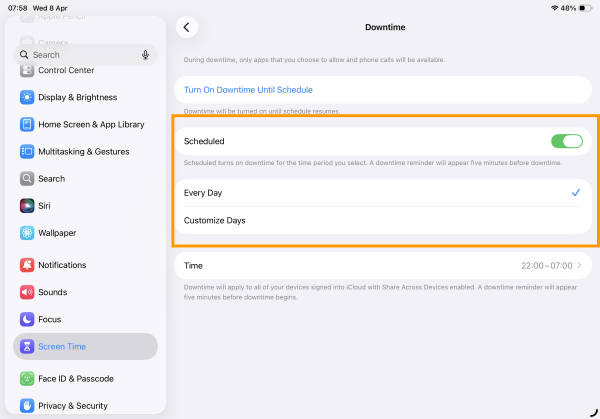
Think of Downtime as a “curfew” for your apps. When Downtime is enabled, only calls and the apps you’ve specifically chosen to allow will be available.
-
Go to Settings > Screen Time.
-
Tap Downtime or Scheduled and toggle it on.
-
Select Every Day or Customize Days.
-
Pro Tip: Set your Downtime to start 1 hour before you intend to sleep. This forces you to put the iPad down and pick up a physical book instead.
2. Set realistic “App Limits”
Instead of banning an app entirely, give yourself a daily “allowance.”
-
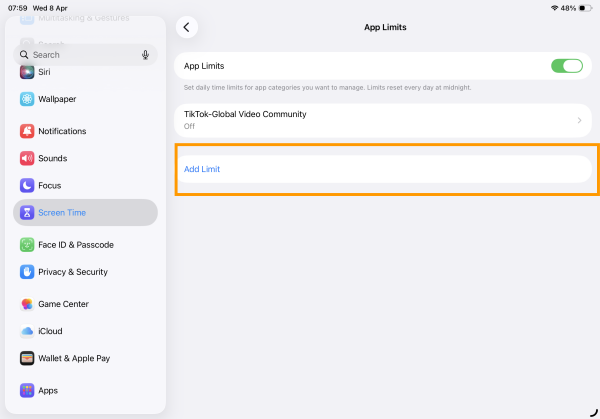
In the Screen Time menu, tap App Limits > Add Limit.
-
You can choose entire categories (like “Social Media”) or specific apps (like “YouTube”).
-
The “Reddit” Trick: Many users suggest setting a 30-minute limit for distracting apps but giving yourself a “bonus” 5 minutes once the limit is hit to finish what you’re doing. This reduces the frustration of a “hard cut-off.”
3. Use a Screen Time Passcode (and have someone else set it)
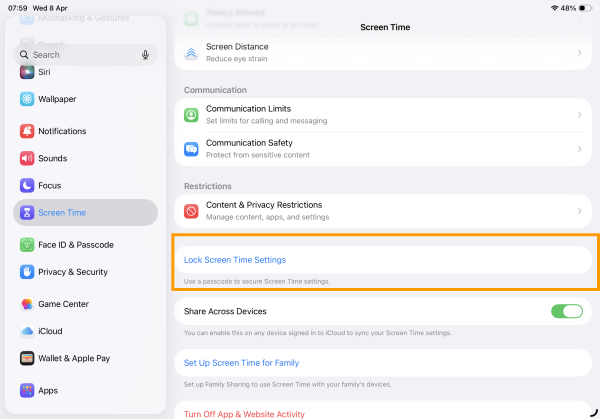
This is the “nuclear option” for self-discipline. If you find yourself constantly clicking “Ignore Limit,” have a friend, partner, or parent set the 4-digit passcode.
-
Tap Lock Screen Time Settings.
-
Enter a code that you don’t know.
-
This creates a physical barrier to cheating your own rules.
Practical tips from the community (Reddit & Forums)
Theoretical settings are great, but how do real people handle iPad addiction? I’ve scoured forums like Reddit’s r/iPad and r/Productivity to find what actually works.
The “Grayscale” hack
Did you know the vibrant colors of the iPad are part of what makes it so addictive? By turning your screen to grayscale, you make the device significantly less stimulating.
-
How: Go to Settings > Accessibility > Display & Text Size > Color Filters and toggle on Grayscale.
-
Result: Instagram and YouTube suddenly look very boring, making it much easier to put the device away.
Create an “Activity Menu”
Psychologists on forums often suggest that when we stop using a screen, we feel “lost” or bored. To prevent this, keep a physical list (on paper!) of non-screen activities:
-
Journaling or sketching (analog).
-
Meditation or stretching.
-
Reading a physical book.
-
A quick 10-minute walk.
Delete “Infinite Scroll” apps
If you’re serious about productivity, delete the iPad version of apps like TikTok or Facebook. Force yourself to check them on your phone or, better yet, a desktop computer. The iPad is a “lean-back” device; removing the most addictive apps turns it back into a tool for creation rather than just consumption.
Addressing common bypasses and hacks
Kids (and let’s be honest, adults) are clever. Common ways people bypass limits include:
-
Changing the Time Zone: Manually setting the clock back to “gain” more time.
-
Fix: In Content & Privacy Restrictions, lock “Location Services” and “System Services” to prevent time zone changes.
-
-
Deleting and Reinstalling: Some users delete an app to reset the timer.
-
Fix: Disable “Deleting Apps” and “Installing Apps” under iTunes & App Store Purchases.
-
Discover more:
- How to fix VPN not working on iPad, some practical solutions you need to know
- iPad stuck in headphone mode and 11 practical ways to fix it
Frequently asked questions (FAQs)
Can I set different limits for weekends?
Yes! Under the Downtime or App Limits menu, select Customize Days. This allows you to be more relaxed on Saturdays while staying disciplined during the work week.
Does Screen Time drain my iPad battery?
The battery impact is negligible. The system tracks usage in the background with very low power consumption. The battery you save by using your iPad less will far outweigh the cost of the tracking.
What if I forgot my Screen Time passcode?
If you’re on the latest iPadOS, you can reset it using your Apple ID. Tap “Forgot Passcode?” on the Screen Time passcode entry screen to begin the recovery process.

Final thoughts: Consistency is key
Learning how to limit screen time on iPad isn’t a one-time setup; it’s a lifestyle adjustment. Start small. Maybe just set a limit for one specific app this week. As you start to feel the benefits, better focus, less anxiety, and more “real world” time, you’ll find it easier to tighten the reins.
Remember, your iPad is a tool meant to serve you, not the other way around. Happy (focused) browsing!







