

iPad stuck in headphone mode? Fix it fast with these 11 practical tips. Clean your port, reset settings, and get your sound back.
There is nothing more frustrating than wanting to watch your favorite Netflix show or jump into a Zoom call on your iPad, only to realize there is no sound coming from the speakers. You press the volume button, and the dreaded “Headphones” icon staring back at you, even though nothing is plugged in.
As a fellow tech enthusiast who lives and breathes iPad productivity, I know the “phantom headphone” glitch feels like a hardware death sentence. But don’t panic just yet! Most of the time, your iPad isn’t actually broken; it’s just confused.
Whether you’re using an older iPad with a 3.5mm jack or a brand-new iPad Pro with USB-C, I’ve gathered the most practical, real-world solutions from Apple forums, Reddit, and hands-on testing to get your audio back.
CONTENTS:
- Why is my iPad stuck in headphone mode?
- iPad stuck in headphone mode and some practical ways to fix it
- 1. “Pluck and Play”
- 2. Clean the port
- 3. Toggle Bluetooth and Airplane mode
- 4. Restart your iPad
- 5. Check the “Audio Output” in Control Center
- 6. The “Keyboard Clicks” reset
- 7. Change your Ringer and Alerts settings
- 8. Check for water damage
- 9. Use a Bluetooth speaker as a bridge
- 10. Update your iPadOS
- 11. The last resort: Contact Apple Support
- Frequently asked questions (FAQs)
- Pro Tip: Prevention is better than cure
Why is my iPad stuck in headphone mode?
Before we dive into the “how-to,” it helps to understand the “why.” Usually, it comes down to three things:
-
Debris: A tiny piece of lint or dust in the port is tricking the iPad into thinking a jack is inserted.
-
Software Glitch: The iPadOS hasn’t registered that you’ve disconnected your Bluetooth or wired headphones.
-
Moisture: Even a tiny drop of water or high humidity can short the sensor in the port.
iPad stuck in headphone mode and some practical ways to fix it
1. “Pluck and Play”
This is the oldest trick in the book, but it still works for many users on Reddit.
-
Wired users: Take your headphones, plug them in firmly, and then pull them out quickly. Repeat this 5-10 times. This helps the “micro-switch” inside the port snap back into the correct position.
-
USB-C/Lightning users: The same logic applies. Sometimes the digital handshake between the dongle and the iPad gets “stuck.”
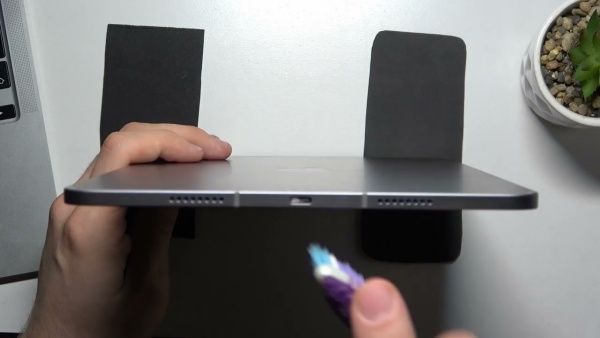
2. Clean the port
You would be surprised how much pocket lint can fit inside a tiny iPad port.
-
The Pro Tip: Do NOT use a metal needle or paperclip; you’ll risk permanent damage. Instead, use a wooden toothpick or a soft-bristled toothbrush.
-
Gently (and I mean gently) swirl it around the inside of the jack or port to pull out any “bunnies.”
-
Reddit Hail Mary: Some users swear by using a can of compressed air or even—believe it or not—sucking air out of the port (be careful not to get moisture in there!).
3. Toggle Bluetooth and Airplane mode
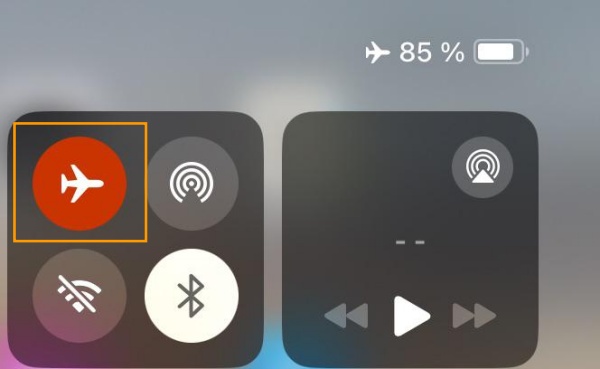
Sometimes the iPad is still “latched onto” a pair of AirPods or a Bluetooth speaker that is technically off.
-
Swipe down to open Control Center.
-
Tap the Airplane Mode icon, wait 10 seconds, and turn it off.
-
Alternatively, go to Settings > Bluetooth and toggle it off completely to force the iPad to look for the internal speakers.
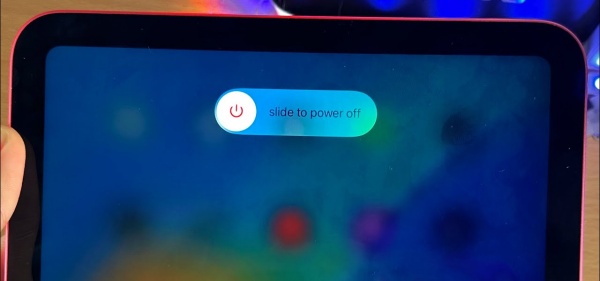
4. Restart your iPad
A standard “Turn off and on” might not be enough. You need to clear the temporary cache that’s holding the audio error.
-
For iPads without a Home Button: Press and quickly release Volume Up. Press and quickly release Volume Down. Press and hold the Top Button until the Apple logo appears.
-
For iPads with a Home Button: Hold both the Home and Top buttons until you see the Apple logo.
5. Check the “Audio Output” in Control Center
Sometimes the iPad isn’t “stuck”; it’s just directed to the wrong output.
-
Open Control Center.
-
Tap the AirPlay icon (the little circles and triangle) in the top right of the music widget.
-
Manually select “iPad” instead of Headphones or any other device listed.
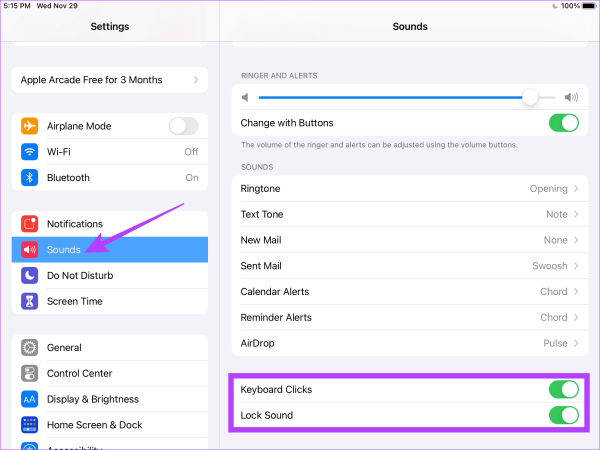
6. The “Keyboard Clicks” reset
This is a weird one, but users on the Apple Support forums have found success with it for years.
-
Go to Settings > Sounds.
-
Turn off Lock Sounds and Keyboard Clicks.
-
Perform a standard restart. Sometimes disabling these specific system sounds “nudges” the audio driver back to reality.
7. Change your Ringer and Alerts settings
Try to “scare” the iPad into realizing the speakers work.
-
Go to Settings > Sounds.
-
Under Ringer and Alerts, slide the volume bar all the way to the right. Usually, the iPad will play a sample of your ringtone through the speakers, which can override the headphone mode.
8. Check for water damage
If you recently used your iPad near a pool or in a steamy bathroom, moisture might be the culprit.
-
The Fix: Do NOT put it in rice (that’s a myth and can get dust in the ports). Instead, leave it in a well-ventilated area for 24 hours. A silica gel packet placed near the port can help speed up the process.
Read More:
- How to play background YouTube video on iPad window mode
- 7 best iPad windowed multitasking tips for pro productivity
9. Use a Bluetooth speaker as a bridge
Connect your iPad to a Bluetooth speaker and play some music. While the music is playing, turn the Bluetooth speaker off. Often, when the iPad loses the Bluetooth connection, it “wakes up” and defaults back to its own internal speakers.
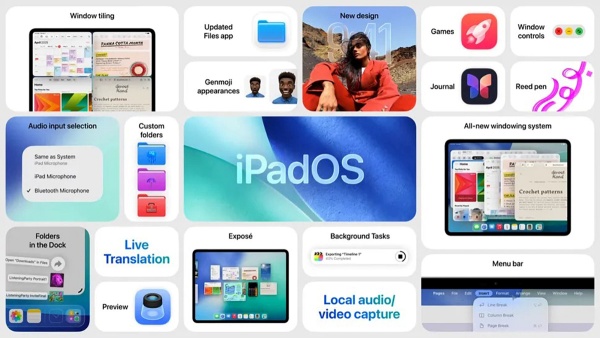
10. Update your iPadOS
If this is a known bug, Apple usually releases a patch. Go to Settings > General > Software Update. Even if you are already on the latest version, sometimes “Reset All Settings” (not a factory reset, so you won’t lose data) can fix deep-rooted software glitches.
11. The last resort: Contact Apple Support
If you’ve cleaned the port, restarted five times, and the icon is still there, you might have a hardware failure in the headphone jack or the logic board. If your iPad is still under AppleCare+, now is the time to use it.
Frequently asked questions (FAQs)
Q: Can a software update cause my iPad to get stuck in headphone mode?
A: Yes, occasionally a bug in iPadOS can cause the audio driver to hang. If this happens right after an update, try “Reset All Settings.”
Q: My iPad doesn’t even have a headphone jack, but it says “Headphones”!
A: This happens on USB-C or Lightning models if the port is dirty or if there is a short circuit. The iPad treats the charging port as an “Audio Accessory” port.
Q: Is it safe to use alcohol to clean the port?
A: Use 99% Isopropyl alcohol on a tiny cotton swab, but ensure it is not dripping wet. Never use water.
Pro Tip: Prevention is better than cure
If you find yourself dealing with this often, I highly recommend getting a small dust plug for your headphone jack or charging port. It’s a $2 investment that prevents lint from causing these $200 headaches.
Personal Growth Tip: Technology glitches are a great test of patience! Instead of getting frustrated, use the “24-hour rule”-if a tech problem isn’t fixed in 10 minutes, step away, let the device (and yourself) breathe, and come back to it with a fresh perspective. Most “unfixable” bugs have a way of resolving themselves after a good night’s rest!






