

Is your iPad backup larger than your storage? Learn how to fix this with our practical, step-by-step guide.
Hello there! As a fellow tech enthusiast who practically lives on my iPad, I know exactly how frustrating it is to see that “Not Enough Storage” alert, especially when your backup size seems to defy the laws of physics by being larger than the actual data on your device.
It’s a common headache, but don’t worry. I’ve scoured the Apple Support communities, dug through Reddit threads, and tested these steps myself to bring you a guide that actually works.
CONTENTS:
Why is my iPad backup larger than storage?
Before we jump into the fixes, let’s address the “why.” How can a 64GB iPad try to create a 70GB backup?
Usually, it’s not a math error; it’s a data management glitch. Common culprits include:
-
Corrupted temporary files: Ghost data that the system thinks needs to be backed up.
-
Photo library bloat: High-resolution videos and photos that haven’t been optimized.
-
App “Documents & Data”: Apps like WhatsApp, Telegram, or video editors (LumaFusion, CapCut) often cache massive amounts of data that get tagged for backup.
-
Previous backup overlap: Sometimes iCloud tries to stack a new backup on top of an old, “stuck” version.
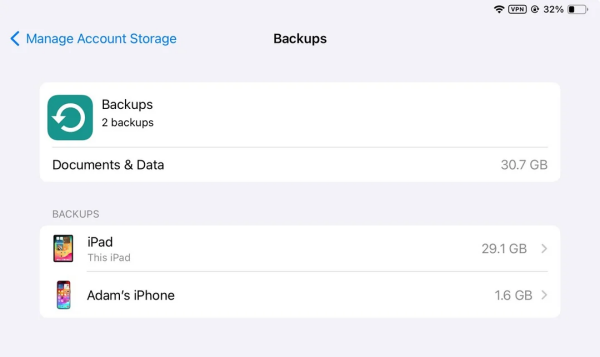
How to fix iPad backup larger than storage fix and reclaim your space
If you’re staring at an “iCloud Storage Full” message despite having a relatively empty iPad, follow these practical steps to slim down that backup.
1. Identify the “Data Hogs” in your backup settings
Most people assume a backup includes everything, but you have the power to toggle off the heavy hitters.
-
Go to Settings > [Your Name] > iCloud > Manage Account Storage > Backups.
-
Select your current iPad.
-
Wait for the Choose Data to Back Up or Saved to iCloud list to load.
-
Pro Tip: Look for apps with several gigabytes of data. Often, social media apps or cached libraries in streaming apps are the culprits. Toggle them OFF.

2. Delete and restart
Users on r/iPad frequently suggest that the most effective way to clear a bloated backup calculation is to wipe the slate clean.
-
Delete your current (often incomplete) iCloud backup from the settings menu mentioned above.
-
Force Restart your iPad (Volume Up, Volume Down, then hold the Power button until the Apple logo appears).
-
Go back to iCloud settings and try to “Back Up Now” This forces the system to recalculate the actual file size from scratch.

3. Optimize your Photo Library
Photos are usually the primary reason for backup inflation. If you have “Optimize iPad Storage” turned off, your iPad keeps full-resolution versions of every photo, which then tries to upload to the cloud.
-
Go to Settings > iCloud > Photos.
-
Ensure Optimize iPad Storage is checked.
-
If your library is still massive, consider moving your photos to Google Photos or a physical SSD to keep your iCloud backup lean and mean.

4. Clear “Other” or “System Data”
If you see a massive grey bar in your storage labeled “System Data,” this is likely where the “ghost” backup size is coming from.
-
Clear Safari Cache: Go to Settings > Apps > Safari > Clear History and Website Data.
-
Offload Unused Apps: This removes the app but keeps the data. However, for a backup fix, it’s often better to Delete and reinstall apps like TikTok or Instagram, which accumulate massive caches that don’t need to be backed up.

Practical tips for a healthier iPad experience
Beyond just fixing the backup, keeping your iPad “lean” helps with performance and longevity.
-
The 20% Rule: Try to keep at least 20% of your iPad’s internal storage free. iPads use internal flash memory as “swap” (temporary RAM); if it’s too full, your iPad will feel sluggish.
-
Audit your Messages: We often forget that 3-year-old iMessage threads with videos can take up 5GB+. Set your messages to “Keep for 1 Year” instead of “Forever” in Settings.
-
Use External Storage: If you’re a student or creative, use a USB-C thumb drive for your Files app. There is no need to back up 20GB of raw school PDFs to iCloud if they are safe on a physical drive.
Read More:
- How to fix iPad keyboard lag in Google Docs: 7 practical tips
- iPad is stuck on update progress bar: Here is how to actually fix it
FAQs about iPad backup larger than storage fix
Why does my iPad say the next backup size is 50GB when I only have 20GB of files?
This is usually due to indexing errors. The iPad incorrectly calculates the size of deleted files or temporary caches. Deleting the old backup and restarting the device usually forces a correct recalculation.
Can I backup my iPad to a computer instead?
Yes! If iCloud is giving you too much trouble, plug your iPad into a Mac (Finder) or a PC (iTunes/Apple Devices app). This creates a local backup on your hard drive, bypassing iCloud storage limits entirely.
Will turning off an app in “Choose Data to Back Up” delete my app data?
No. It only means that if you restore your iPad from a backup, that specific app’s data won’t be restored. Your photos and system settings will remain safe.

Final thoughts on managing your iPad storage
Technology should work for you, not the other way around. Seeing an “iPad backup larger than storage” error is just a sign that your device needs a little digital spring cleaning.
By manually selecting what to back up and clearing out your app caches, you can ensure your data is safe without paying for an iCloud tier you don’t actually need.





