

Is your iPad not receiving emails? Don’t panic. From simple network checks to re-adding your account, here’s how to fix your inbox and get back to business.
There is nothing quite as frustrating as waiting for an important email that just won’t show up. You check your phone, and it’s there, but your iPad is showing a blank inbox. You pull down to refresh, and… nothing.
If your iPad is not receiving emails, you aren’t alone. It’s a common issue, and 9 times out of 10, it’s not a hardware problem, it’s just a software hiccup or a setting that went astray. Before you consider a factory reset or a trip to the Apple Store, let’s go through a few simple steps to get your Mail app back on track.
CONTENTS:
Common reasons for email sync issues
Why does this happen? Usually, it comes down to a few culprits:
-
Network Glitches: A temporary hiccup in your Wifi or Cellular data.
-
Incorrect Settings: Your email server settings might need a refresh.
-
Authentication Errors: You might have changed your password elsewhere, and your iPad is still trying to log in with the old one.
-
Syncing Conflicts: The “Push” or “Fetch” settings might be configured to save battery rather than update in real-time.

iPad not receiving emails and how to fix it
If you cannot get mail on iPad, follow the fellow steps:
1. Network check
Start simple. Sometimes the iPad gets stuck in a loop trying to connect to a server.
-
Turn on Airplane Mode, wait about 10 seconds, and turn it off again. This forces the iPad to re-establish its connection to your Wifi or cellular network.
-
If that doesn’t work, try toggling your Wifi off and back on again.

2. Verify your Fetch/ Push settings
This is the most common fix. If your email is set to “Manual”, it won’t check for new messages until you actually open the app.
-
Go to Settings => Mail => Accounts => Fetch New Data.
-
Ensure that “Push” is toggled ON for your email accounts if available.
-
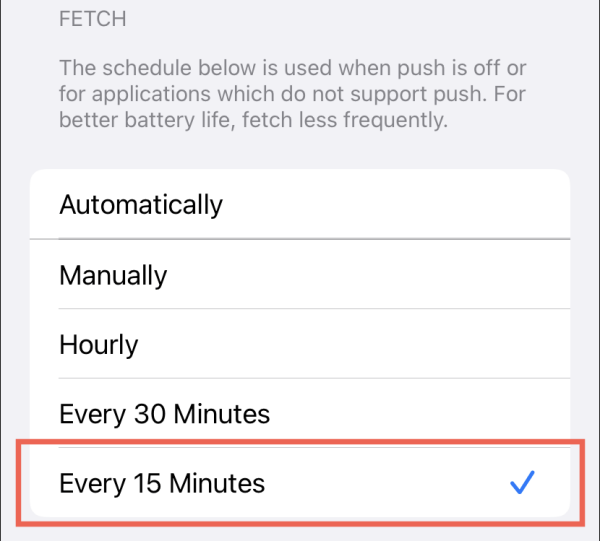
At the bottom, under “Fetch”, choose Automatically or Every 15 Minutes. If it’s set to “Manually”, your iPad won’t receive emails until you tell it to.
3. Check for password updates
Did you change your password on your laptop or the Gmail/ Outlook website recently? Your iPad won’t automatically know that.
-
If your iPad stops receiving mail, go to Settings => Mail => Accounts.
-
If you see an alert saying “Cannot Get Mail” or “Re-enter Password”, tap it and update your credentials.
4. Remove and re-add your account
If nothing else works, this is the most reliable way to clear out corrupted sync data.
-
Go to Settings => Mail => Accounts.
-
Select the problematic account and tap Delete Account. (Don’t worry, this won’t delete your emails from the server, it just removes the link from your iPad).
-
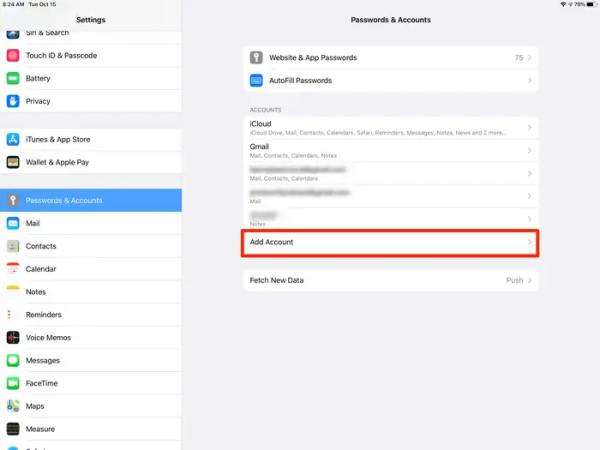
Restart your iPad, then go back to Settings => Mail => Accounts => Add Account and sign in again. This forces a fresh, clean sync.
5. Check notifications
Sometimes, you are receiving emails, but the iPad just isn’t telling you.
-
Go to Settings => Notifications => Mail.
-
Make sure “Allow Notifications” is on, and that you have a “Banner” or “Alert” style selected.
6. Battery saver mode
Did you know that Low Power Mode limits background activity? This includes fetching new emails.
-
Check your Control Center or Settings => Battery. If “Low Power Mode” is on, turn it off and see if your mail starts flowing in again.
7. Update your iPadOS
It sounds cliché, but sometimes a specific bug in the Mail app is fixed by Apple in a software update. Go to Settings => General => Software Update to make sure you are on the latest version.

A note on interference
While rare, if you work in an environment with high levels of static electricity or near powerful magnets, it can occasionally interfere with the digitizer’s sensors, making the screen feel unresponsive or causing erratic behavior.
While this rarely affects the fetching of emails, ensure your iPad isn’t stored right next to high-end speakers or magnetic devices, as clean hardware is always a good starting point.
Read More:
- Is your Procreate brush skipping? Here’s how to get your flow back
- How to convert handwritten notes on iPad to text: Easy guide
Q&A: Your questions answered
Q: Why does my iPad receive emails on Wi-Fi but not on Cellular?
A: Check Settings => Cellular. Scroll down to find the Mail app and make sure the toggle is switched to ON. If it’s off, your iPad is blocked from using mobile data for email.
Q: Is my storage full?
A: Yes, this matters. If your iPad’s internal storage is completely maxed out, it cannot download the attachments or data for new emails. Check your storage in Settings => General => iPad Storage.
Q: Does “Push” vs. “Fetch” drain my battery?
A: “Push” keeps a constant connection, which uses slightly more battery. “Fetch” is more efficient but means you might wait a few minutes to see a new email.
Q: I send emails but not receive them?
A: This usually indicates a problem with your incoming mail server (IMAP/POP3) settings. Removing and re-adding the account (Step 4) usually fixes this 99% of the time.

Conclusion
If you’ve tried all the steps above and your iPad is still not receiving emails, it’s possible there is an outage with your email provider (like Gmail or Outlook). Check their service status pages online. Otherwise, you might need to reach out to Apple Support for a deeper look.
But usually, a simple “re-add” of the account is all it takes to get things moving again. Happy emailing!





